Navigate Here: Documents > Browse Documents by Folder Structure
There are two panels on the Browse Documents by Folder Structure page. The left panel is a list of categories that is defined for the document classification, which can be managed in Classifications. By highlighting a specific node, the corresponding documents will be listed in the table of the right panel. You can select a document to modify or view by clicking the Document ID or Document Name link.
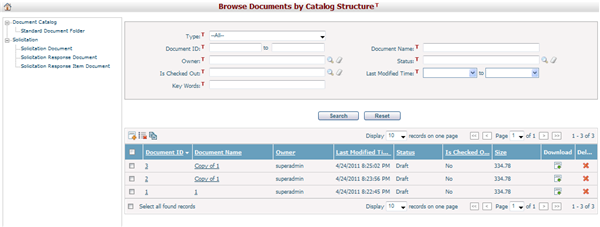
The right panel is composed of two parts: search section and data grid section.
Search conditions in search section can be configured by Dynamic View. You can enter some search conditions and click the Search button, documents listed in the data grid will be filtered and display the records matching with the search conditions. You can click the Reset button to clear the input of search conditions.
Data grid section display all documents in the system by default. If you click a specific catalog in the left panel or input some search conditions in the Search section, records in the data grid will be filtered and only display documents of the specific catalog or documents matching with the search conditions.
You can edit a file by clicking the Document ID or Document Name link and the system will go to the Document Management page for the selected item.
You can download the latest version of a file by clicking the Download icon  in the Download column of each record row.
You can delete a single file by clicking the Delete icon  in the Delete column of each record row.
You can delete multiple files at one time by choosing some files and clicking the Batch Delete icon  at the upper left corner of the table.
You can add a new file by clicking the Add icon  at the upper left corner of the table and the system will go to the Add Document page.
You can add new document(s) by choosing some file(s) and clicking the Batch Copy icon  at the upper left corner of the table and the system will go to the Add Document page.